Batch image resizer: prepare web images with Resize.one
Learn to batch resize images with Resize.one, preserve aspect ratios, choose JPG, PNG, or WebP, and check exports before publishing.
Resize.one at a glance
Use it to: resize a batch of images.
- Input
- Image files
- Output
- Resized images in a selected format
Preserve aspect ratio and inspect a sample before processing a batch.
Jump to the steps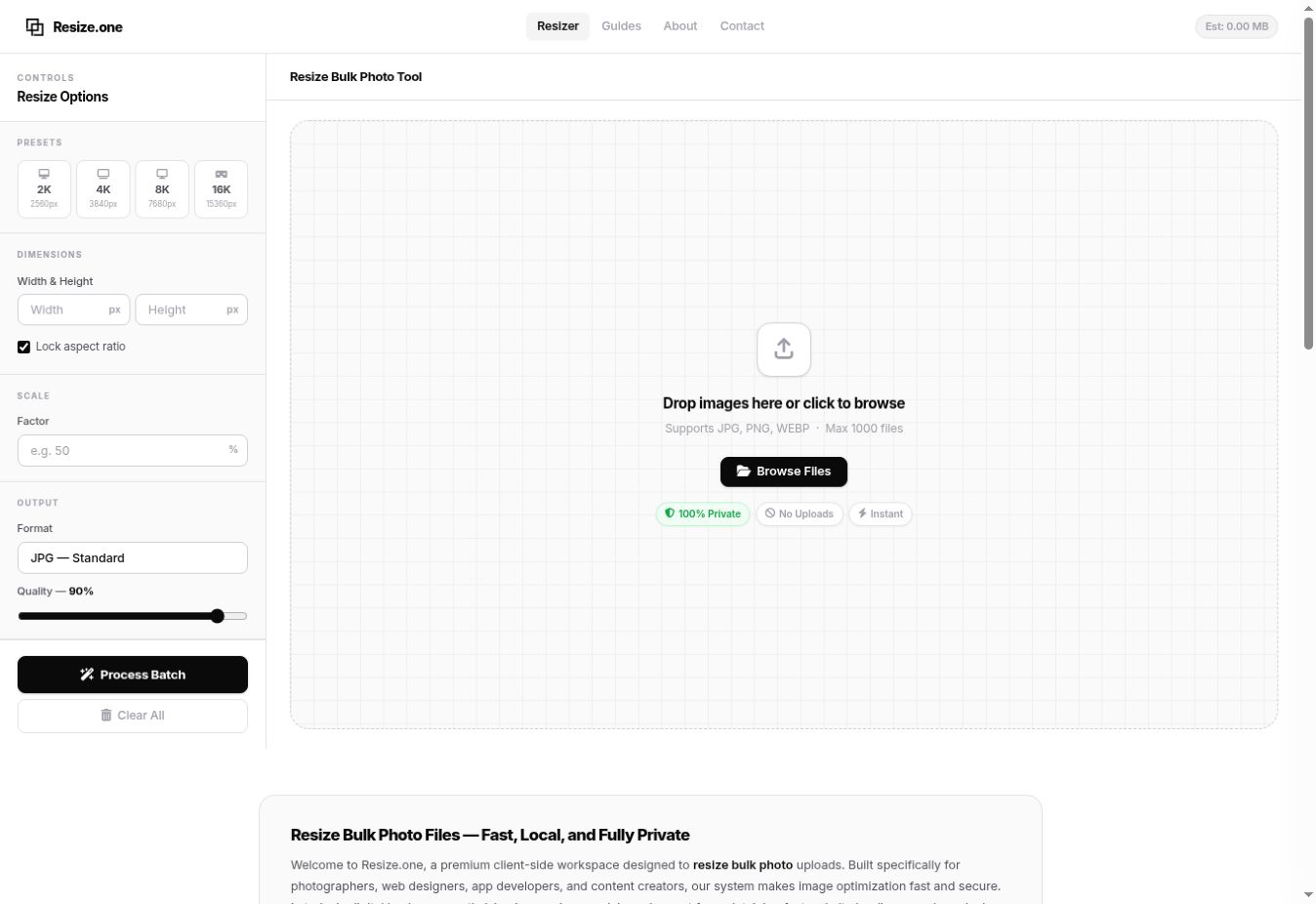
Why use a batch image resizer?
Resize.one is an online workspace for resizing multiple images with a shared set of controls. Its interface includes custom dimensions, percentage scaling, an aspect-ratio lock, output-format selection, and a quality control. It also provides a batch-processing action and ZIP download.
A batch image resizer is especially useful when the same publishing task repeats: product photographs for a catalog, images for a blog, or preview files for a portfolio. The aim is consistency. Decide what the destination needs before applying one setting to an entire folder.
How to resize multiple images with Resize.one
- Keep your originals. Start with copies and group images that need similar treatment.
- Add the images. Use Browse Files or the drop area. Begin with a small representative sample.
- Choose dimensions or a percentage. Leave the aspect ratio locked when you want to preserve the image’s proportions.
- Select the output. Choose the format and quality appropriate to the destination.
- Process and inspect. Download the result, compare detail and file size, and apply the confirmed settings to the rest.
Choose dimensions without stretching the image
Width and height describe the pixel grid; aspect ratio describes its shape. A 2400 × 1600 image has a 3:2 ratio. Scaling it to half size produces 1200 × 800. Forcing that same photograph into 1200 × 1200 without a crop changes its proportions.
If a destination requires a square, decide whether you need to crop the composition or add space around it. Resizing alone is not the same operation as cropping. Separating those decisions avoids stretched faces, distorted products, and unexpected framing.
For mixed portrait and landscape collections, test both orientations before processing everything. A setting that works for one shape may not produce the intended result for another. Keep the output separate until you have checked every group.
JPG, PNG, or WebP?
| Format | Useful starting point | Check before publishing |
|---|---|---|
| JPG | Photographs without transparency | Fine detail and compression artifacts |
| PNG | Graphics requiring transparency | Transparent edges and output size |
| WebP | Web images where the destination supports it | Compatibility and visual quality |
There is no single quality setting that fits every image. Inspect text, sharp edges, gradients, and small details. Compare the exported file at the size your audience will actually see, rather than judging only by the number in the quality control.
Troubleshooting batch exports
If a large batch struggles, reduce the number of images and close unnecessary browser tabs. A successful small sample helps distinguish an unsuitable file from a workload that is too large for the current device.
If the result looks blurry, check whether you enlarged a small source. More pixels do not automatically mean more real detail. If transparency disappears, revisit the selected output format. Before clearing the workspace, make sure the downloaded archive opens and contains the expected files.
Frequently asked questions
Does resizing mean cropping?
No. Resizing changes pixel dimensions; cropping removes part of the composition. Check which operation your destination actually requires.
Can I process JPG, PNG, and WebP?
Resize.one lists those formats in its interface. Test representative files before processing a mixed collection.
Should I overwrite my original photos?
Keep the originals and treat the exports as destination-specific copies. That gives you room to create different sizes later without repeatedly processing an already reduced file.
Try Resize.one for your next task.
Open Resize.one ↗Product details and screenshot checked against Resize.one’s official page on September 22, 2026. This guide is part of Moor’s own tool collection, not an independent ranking or a performance benchmark. The 2027 edition is a planning collection; features may change.